Tap the green Fork It! button on the home screen. Enter the restaurant name, dish name, your verdict, and optionally a photo and notes.
Tap Save dish when done — or Save & add another dish here to quickly log another dish at the same restaurant.
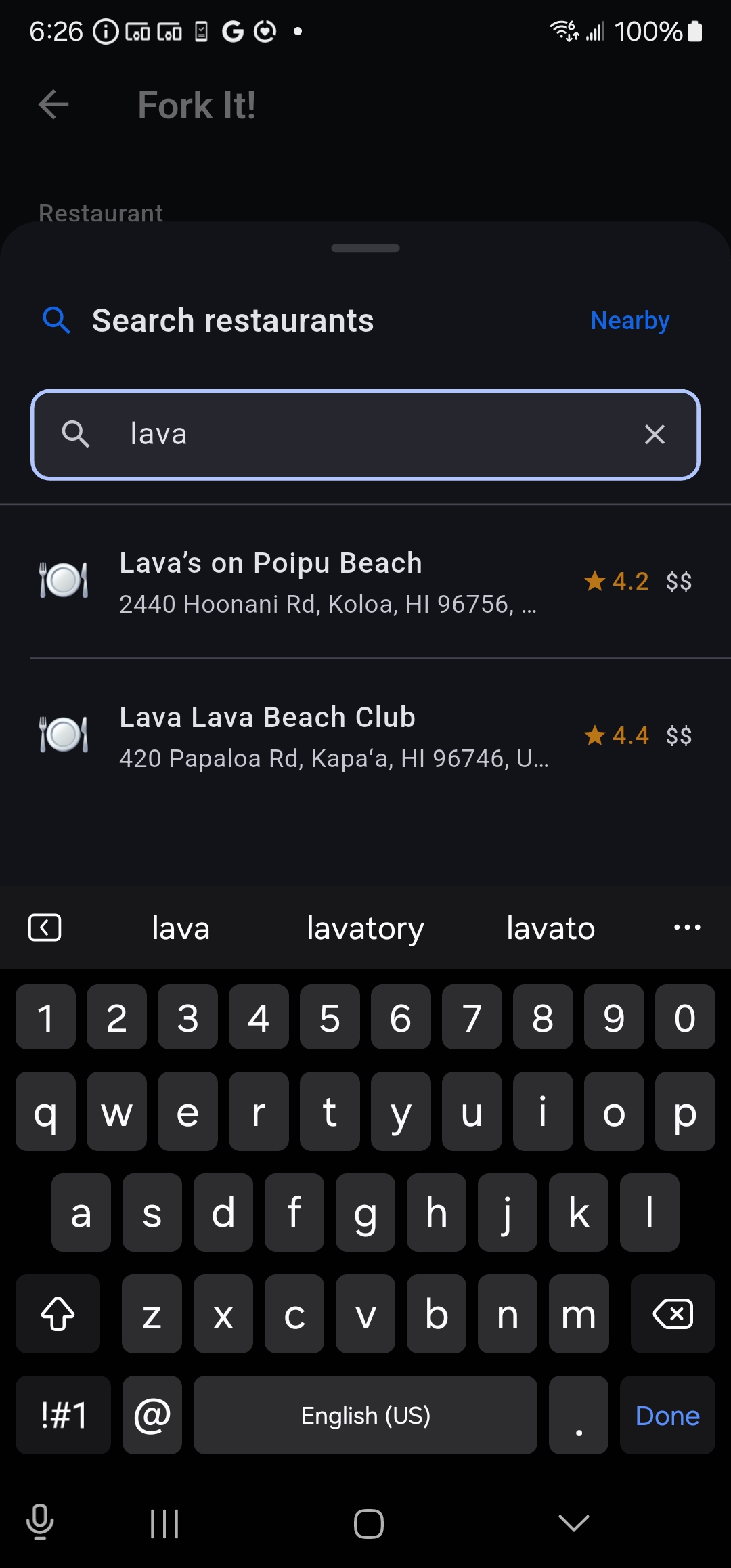
Yes — for dishes you logged yourself. Tap any dish to open its detail view, then tap the edit icon to make changes. To delete, tap the trash icon and confirm.
For dishes shared by other group members, only the person who originally logged the dish can edit or delete it. You can still tap in to see the full details.
On the Fork It! screen, tap Add photo to take a new photo or choose one from your gallery. Photos appear on the dish detail screen. Tap a photo to get the option to save it to your phone's camera roll, or edit the dish to remove it.
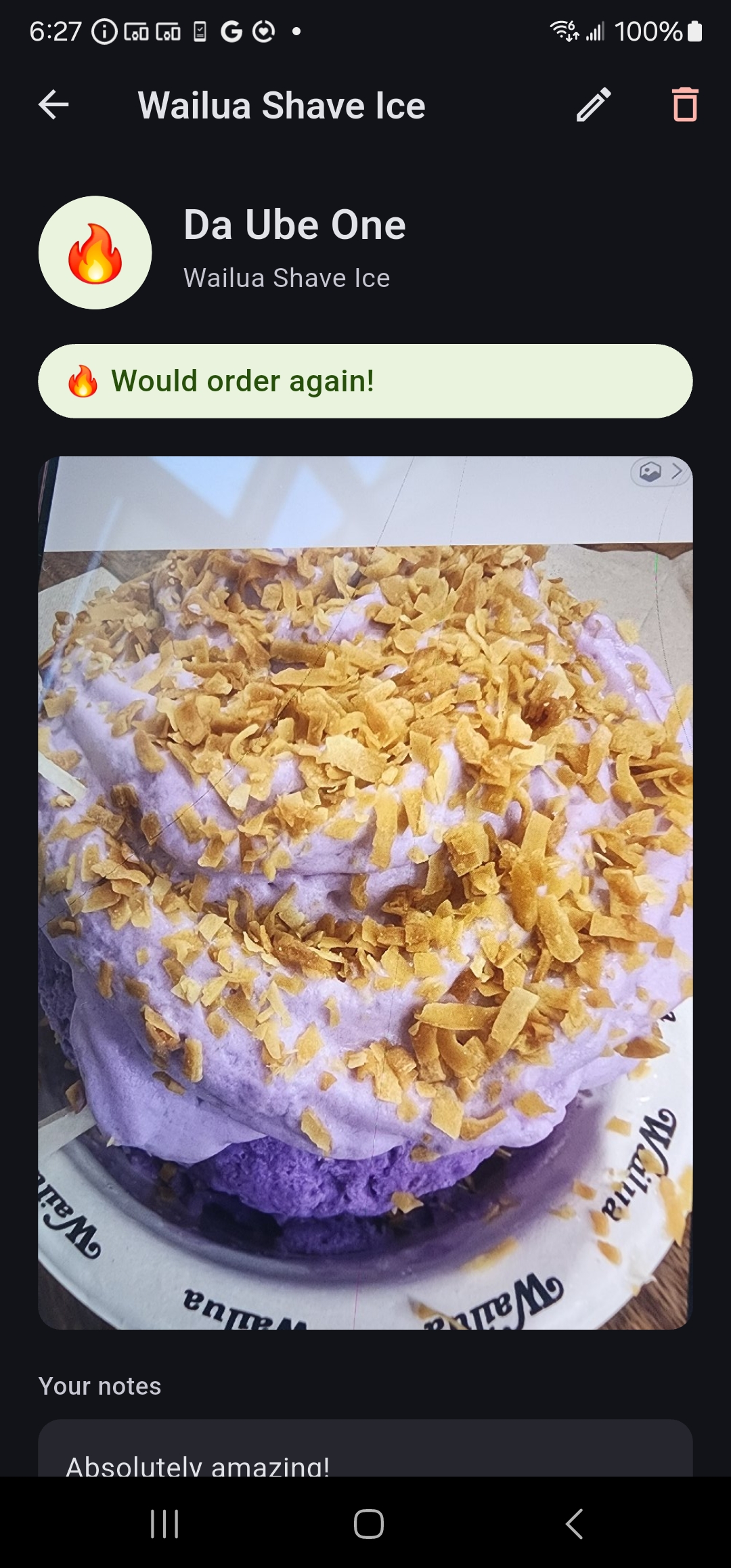
Open any dish and tap the Share button below the verdict. Choose whether to include your notes, then tap Share. A branded card is generated and the native share sheet opens — pick Instagram, X, Facebook, Messages, or any other app.
Every dish gets one of three verdicts. Filter your list by verdict using the chips at the top of the home screen.
Tap A–Z or Recent in the second filter row to switch sort order. The app starts A–Z and switches to Recent after you log a dish.
When you have 3 or more restaurants, tap any restaurant name to collapse or expand its dishes. Collapsed restaurants show a summary like "7 dishes · 🔥 5 😐 1 🚫 1".
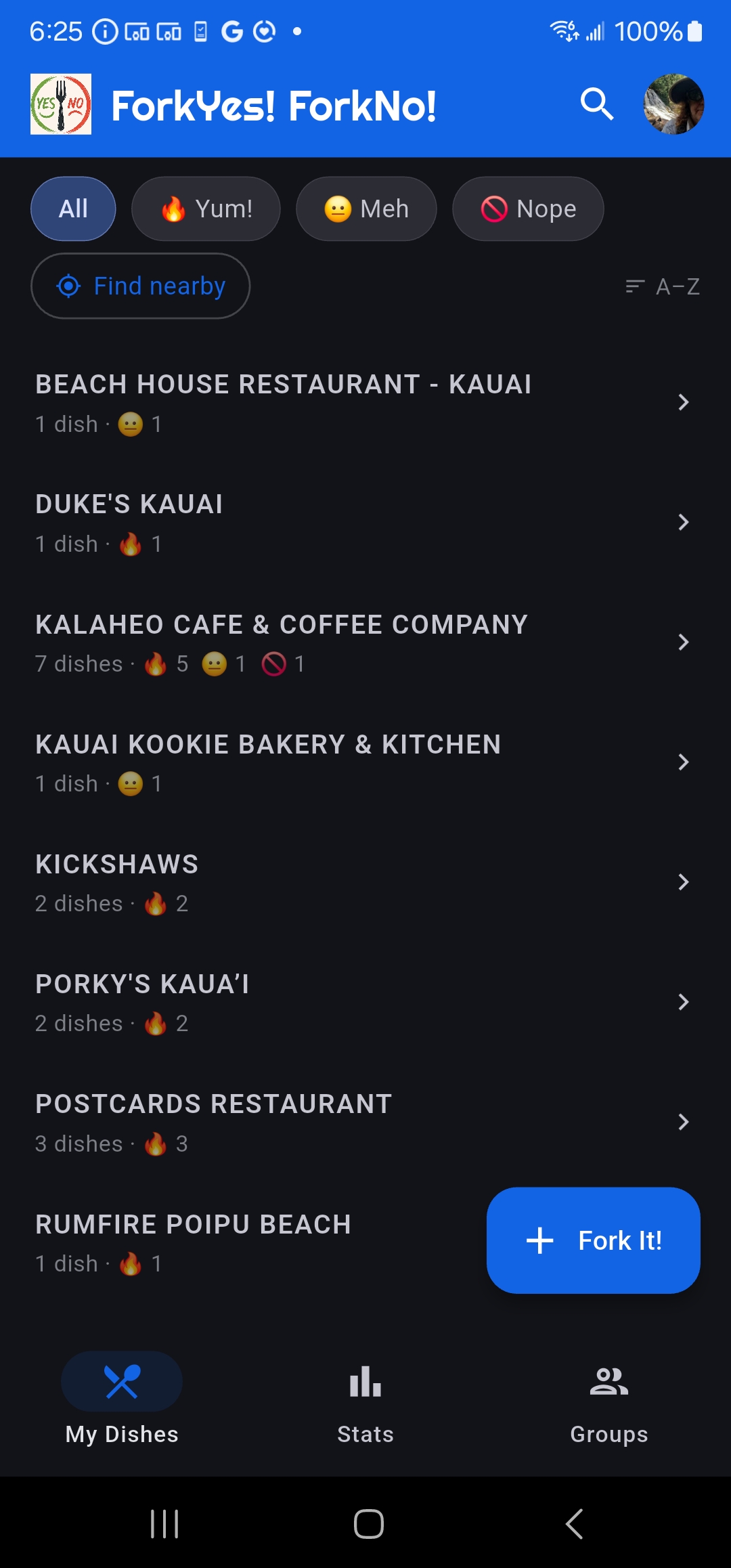
Use the All / Yum! / Meh / Nope chips at the top of the home screen. Premium users can also tap Find nearby to filter by restaurants close to you.
When logging a dish, tap the 📍 pin button next to the restaurant field. ForkYesNo! finds restaurants near your GPS location, sorted by distance.
Tap Search in the top right to switch to text search if you're logging from home.
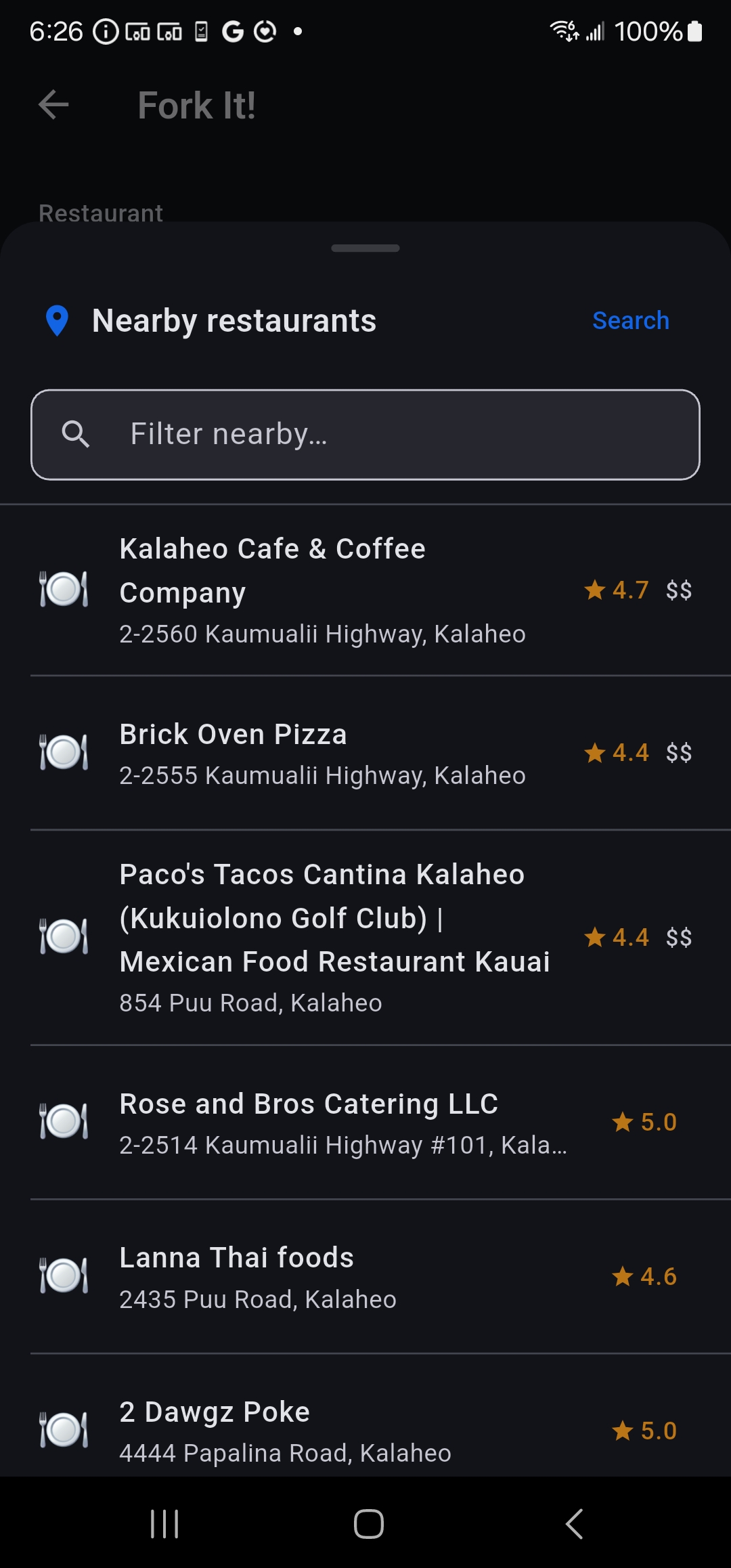
When you're close to a restaurant you've visited before, a banner appears at the top of your list. Tap Find nearby in the filter row to manually trigger a search.
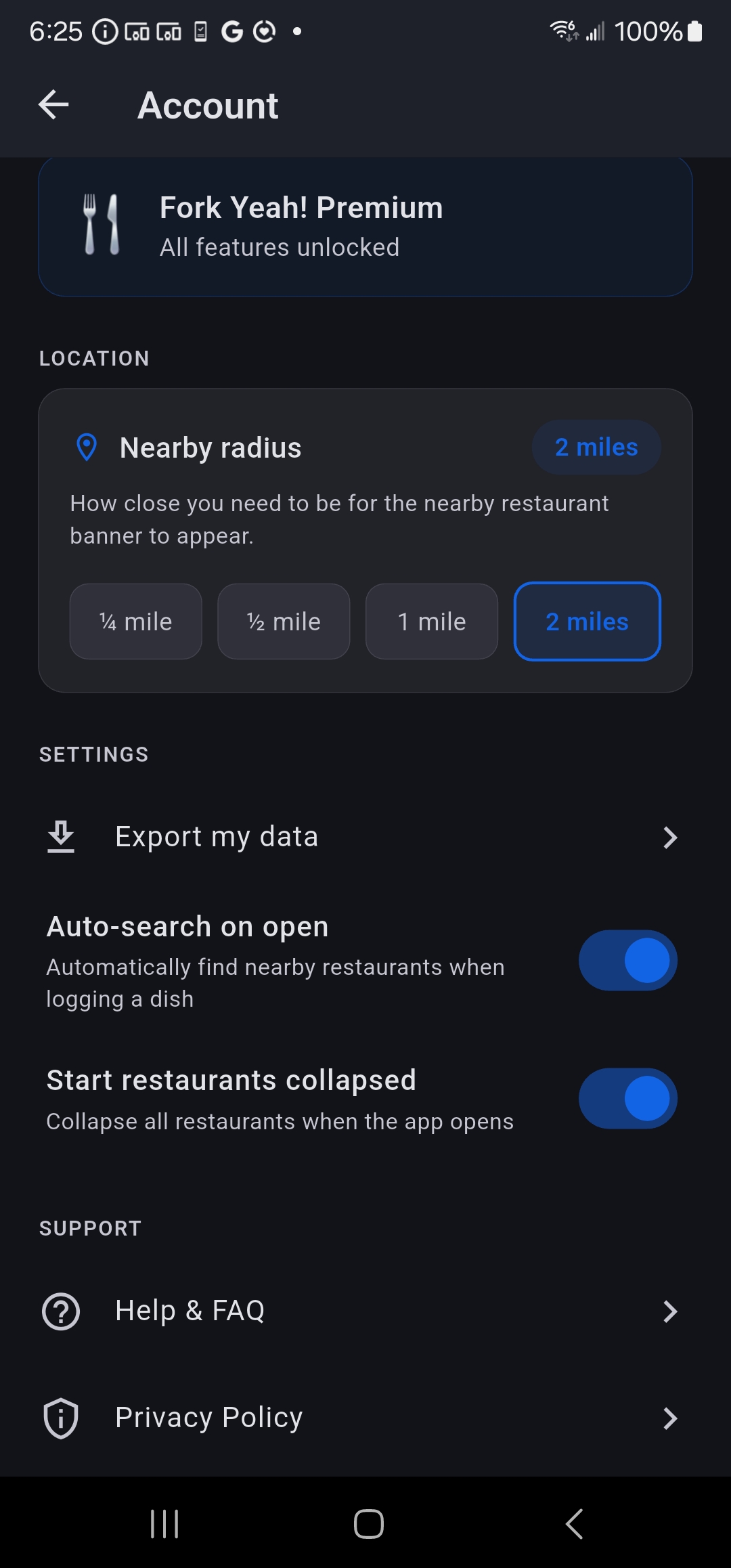
Go to Account → Location → Nearby radius and choose ¼ mile, ½ mile, 1 mile, or 2 miles. The default is ¼ mile.
When enabled in Account → Settings, the Fork It! screen automatically searches for nearby restaurants the moment you open it.
When you log a dish at a place you've been to before but at a different physical location (e.g. Chili's in Tampa vs Chili's in Orlando), the app will ask: "Is this part of the same chain?"
Tap Same chain to link them. Your verdicts from every location roll up together — handy for chains where the menu is the same everywhere, so a "Nope" on the spicy salad at one Chili's warns you at every other Chili's too.
The app remembers your answer, so it won't ask again at future locations of the same chain. Tap Different place if it's just a coincidental name match.
Tap Groups in the bottom navigation. Create a group and share your invite code with the people you want to add. When logging a dish, expand Share with groups and toggle which groups to share it with.
Free accounts can join 1 group. Fork Yeah! members get unlimited groups.
Share your group's invite code with them. They open the Groups tab, tap Join group, enter the code, and they're in.
Each code works once — after someone joins with it, the code is consumed. Generate a new code for the next person.
No. Only the person who originally logged a dish can edit or delete it. When you view a shared dish from another group member, you'll see "Added by [their name]" and the edit/delete buttons are hidden.
You can still see the full details — photo, notes, verdict — just not change them.
ForkYes!ForkNo! sends two kinds of in-app notifications, visible via the bell icon in the top-right corner of the home screen. A red badge shows your unread count.
When a group member logs a dish and shares it to your group, everyone else in that group gets a notification. Tap the notification to jump straight to the Groups tab to see the new dish.
If a photo you uploaded is automatically removed for containing inappropriate content, you'll receive an alert explaining what happened. These appear as a dialog as soon as you open the app.
Yes — go to Account → Group notifications and toggle it off. This disables group share notifications. Content moderation alerts cannot be disabled.
The app keeps your 10 most recent notifications, and automatically removes anything older than 15 days. You can also delete individual notifications manually from the Notifications screen.
The Stats screen shows total dishes logged, restaurants visited, dishes this month, a verdict breakdown chart, most visited restaurants, and most frequently logged dishes.
Go to Account → Settings → Export my data. Available to all users — free and premium. Exports as a CSV you can open in Excel or Google Sheets.
Yes. Your dish history is private by default and only visible to others when you explicitly share it to a group. We never sell your data. See our Privacy Policy.
Tap your profile photo in the top-right to reach Account. From there:
• Adjust your nearby radius (premium)
• Export your dish data (all users)
• Change password (email accounts only)
• Toggle group notifications (if you're in a group)
• Toggle auto-search on open (premium)
• Toggle start restaurants collapsed (premium)
• View Privacy Policy and Terms of Service
• Sign out
• Delete account (permanent)
When you sign up with an email and password, we send a verification link to confirm your address. You have 2 days to verify — after that, access is restricted until you verify.
Check your inbox (and spam folder) for an email from ForkYes!ForkNo! and click the link. Once verified, the reminder banner disappears automatically — no action needed in the app.
If you didn't receive the email, tap Resend on the yellow banner at the top of your dish list.
Google and Apple sign-in users do not need to verify their email.
Go to Account → Settings → Change password. You'll need to enter your current password first, then choose a new one (10+ characters, uppercase, lowercase, number, special character).
This option only appears for email/password accounts — Google and Apple sign-in users manage passwords through those services.
On the login screen, tap Forgot password? and enter your email. You'll receive a reset link within a few minutes. Check your spam folder if it doesn't arrive.
Email us at support@forkyesforkno.com and we'll get back to you as quickly as we can.
Go to Account and scroll to the bottom. Tap Delete account, then confirm in the dialog. This permanently removes your account, all dishes, photos, and group memberships — it cannot be undone.
Your data is deleted immediately from our servers including authentication, dish history, and photos.